Activity Log
Activity Log
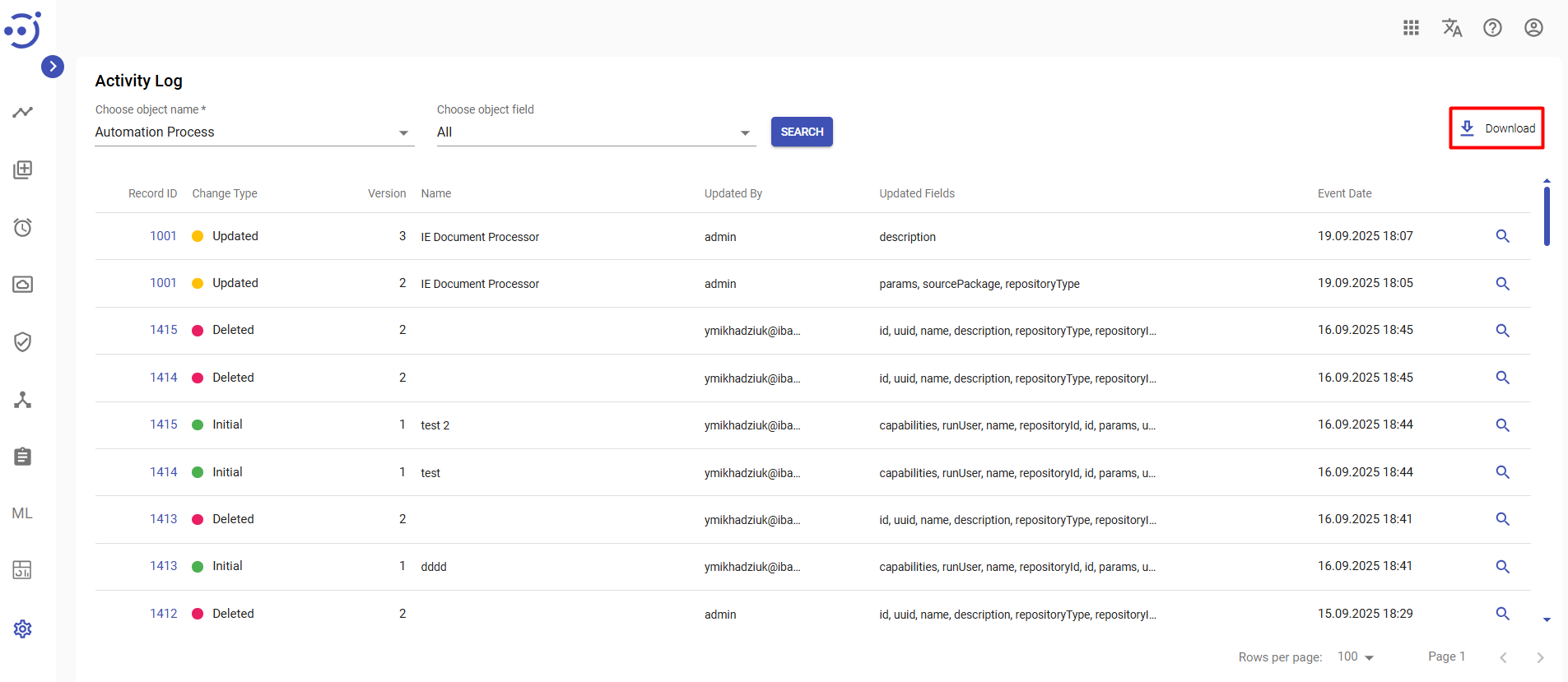
The Activity Log module provides audit functionality to track user and system actions (login sessions, editing Automation Processes/Data Stores, creating AP runs, etc.).
EasyRPA Control Server allows to perform the following actions:
- View the activity log history. To access the Activity log module, you need to be granted Administration-ACTION permission. Additionally to view current record state you need to be granted READ permission for the desired context. See Role Permissions .
- View the particular activity record changes.
View Activity Log History
To view the Activity Log history, you need to:
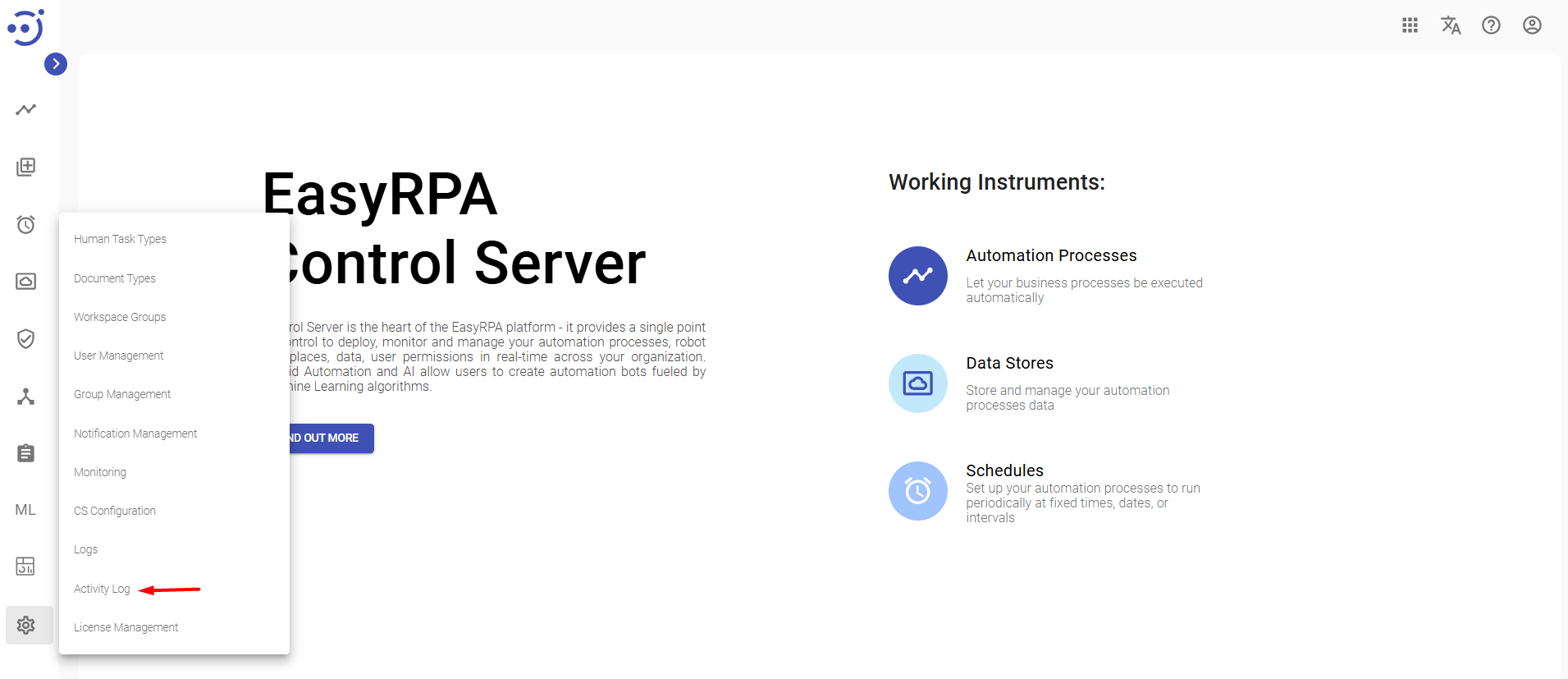
- Navigate to Administration → Activity Log.
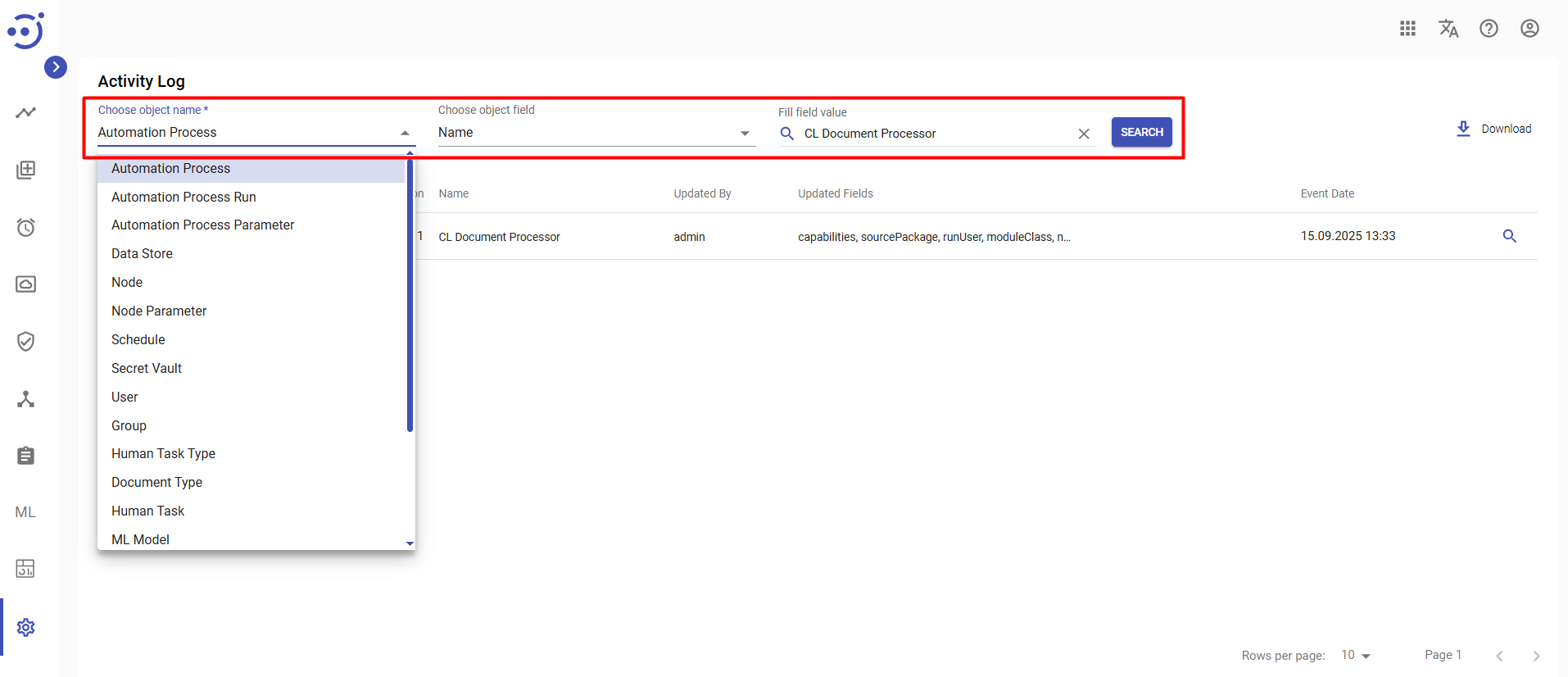
- Chose object name from the dropdown list.
- Chose object field from the dropdown list. If 'All' value selected, all fields activities will be searched.
- If a specific field selected, fill field value (the records can be found only if complete case-sensitive field values are entered).
- Click Search button.
 Please note, that the searchable value should be entered completely into the Search field. A full match is the only way to search.
To apply filter by Record ID, you need to click on magnifying glass icon.
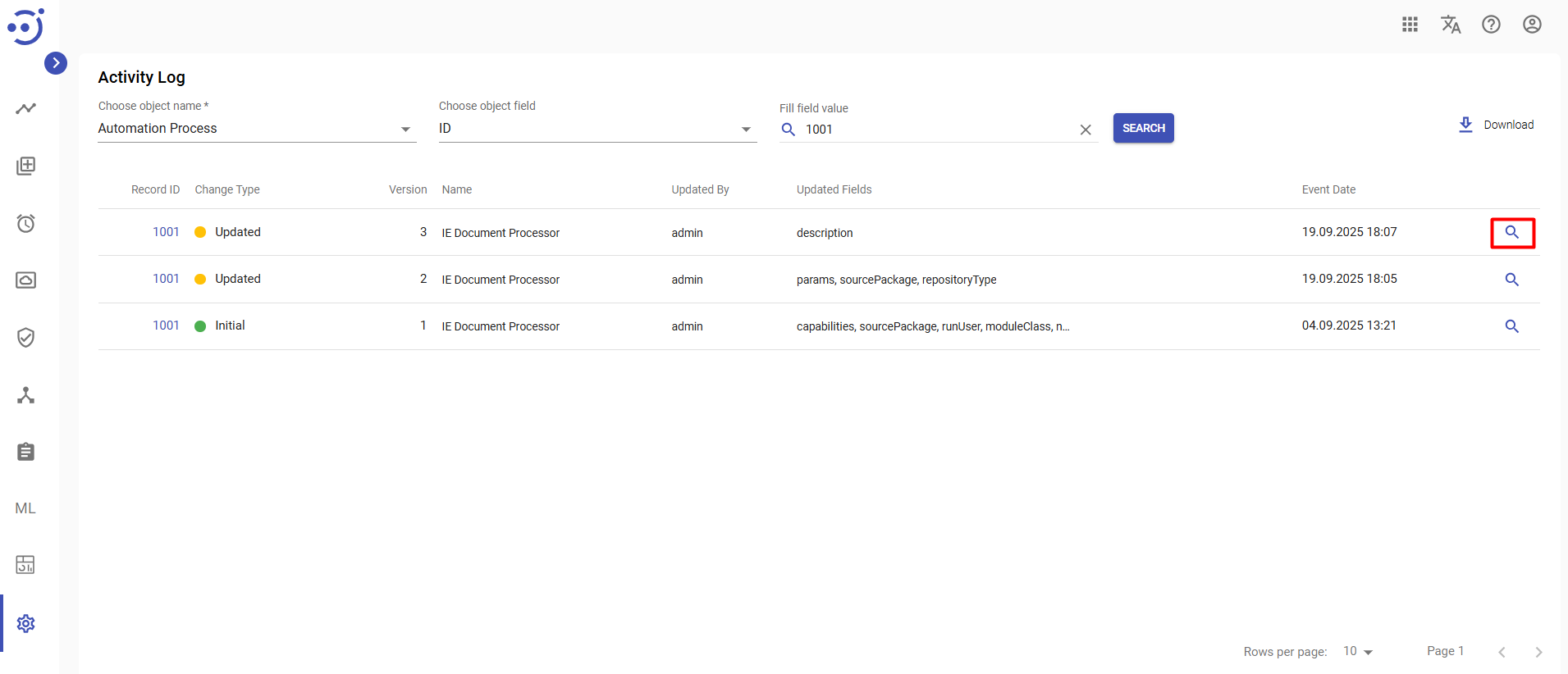
Columns Description
- Record ID - the ID of the entity on which the action was performed.
- Change Type - the type of the activity (Initial, Updated, Deleted)
- Version - the entity change version.
- Name - the Name of the object.
- Updated By - an author of the performed action.
- Updated Fields - the field(s) that have been changed.
- Event Date - the date and time of the performed action.
Note. The Initial change type could indicate the following:
- the entity was created
- the entity was updated after a data purge that erased all previous activities for the entity
Download Activity Log
To download Activity Log history, you need to:
- Navigate to Administration → Activity Log.
- Click on
 button.
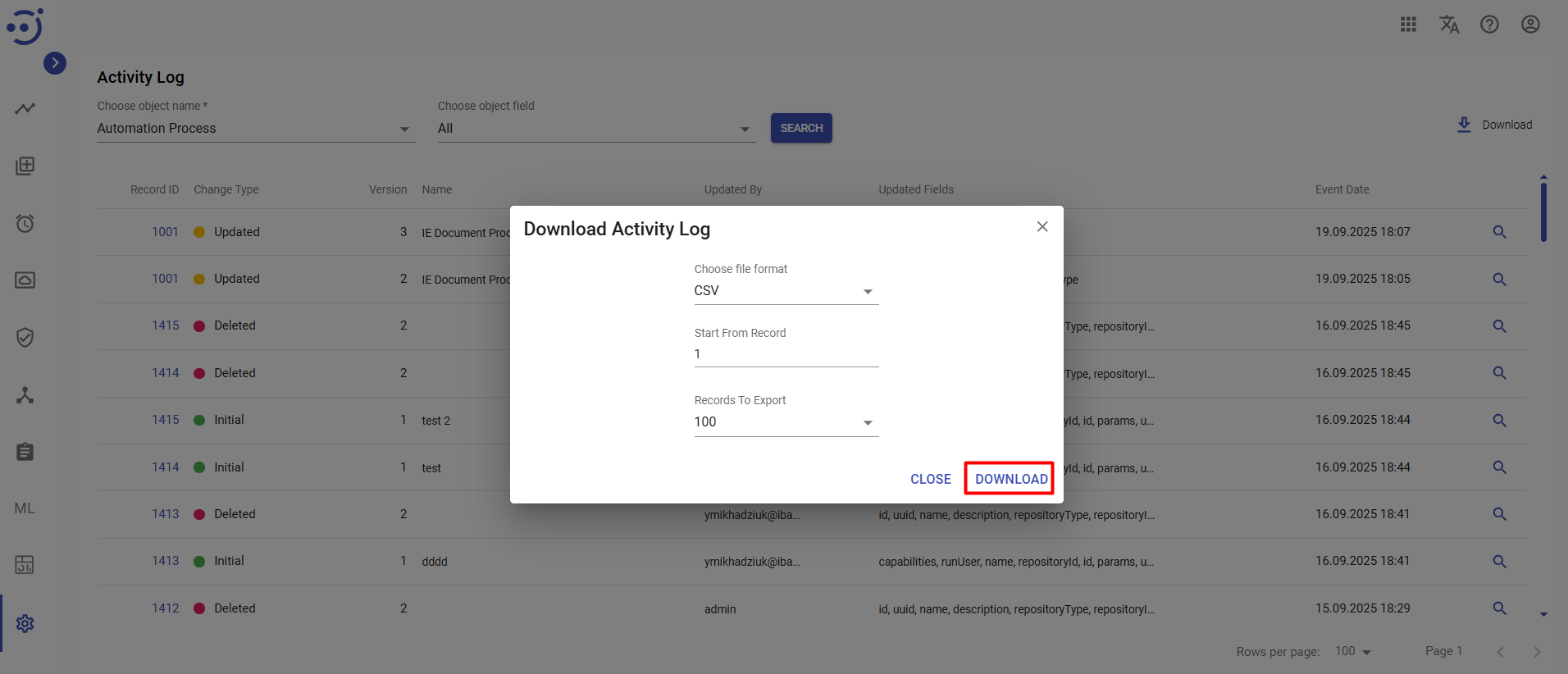
- Choose file format: CSV or EXCEL. The activity log history will be downloaded in the CSV or EXCEL format.
- Choose value "Start from record". The activity log history will be downloaded from selected record.
- Choose value "Records to export".
- Click Download.
View Activity Log Record Changes
To view the particular activity record changes, you need to:
- Navigate to Administration → Activity Log.
- Click on the corresponding Activity Log Record ID.
Columns Description
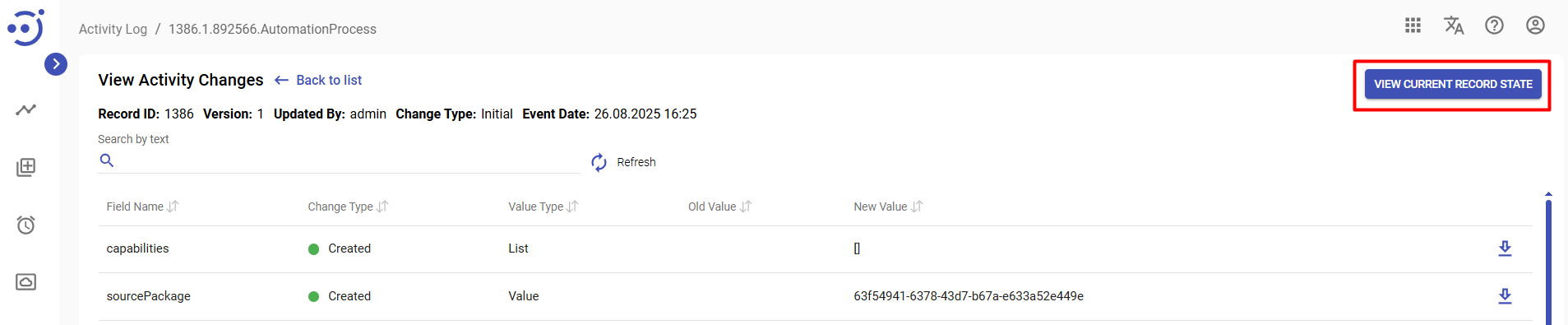
- Field Name - the name of the field modified.
- Change Type - the type of action performed. (Created, Deleted, Updated)
- Value Type - the type of value on which the action was performed. (Value, List, Reference)
- Old Value - the value before the action is performed (empty for "Created" Change Type)
- New Value - the value after the action is performed (empty for "Deleted" Change Type)
- Download Activity - to download existing record.
View Current Record State
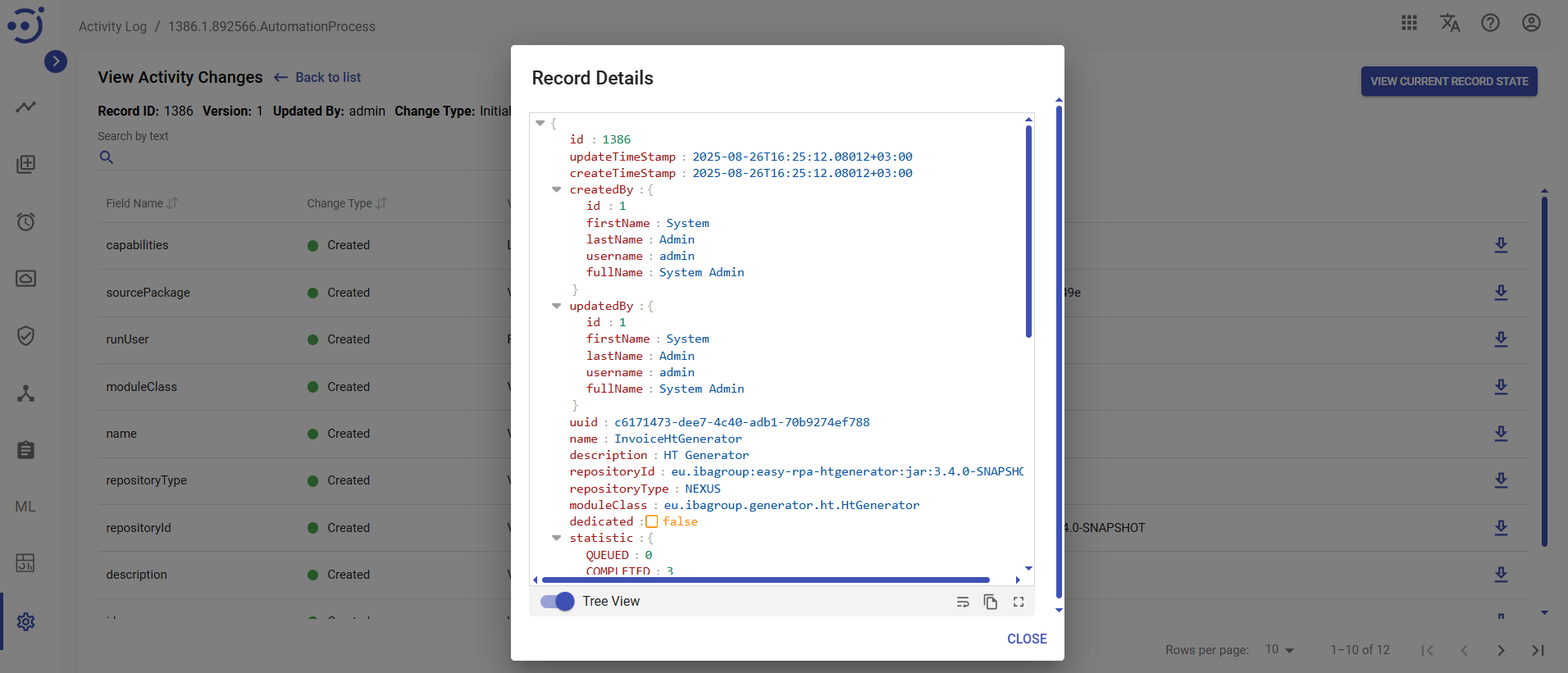
Button View current record state allows to view the actual state and others details of the Record:
If record doesn't exist anymore, its details are empty: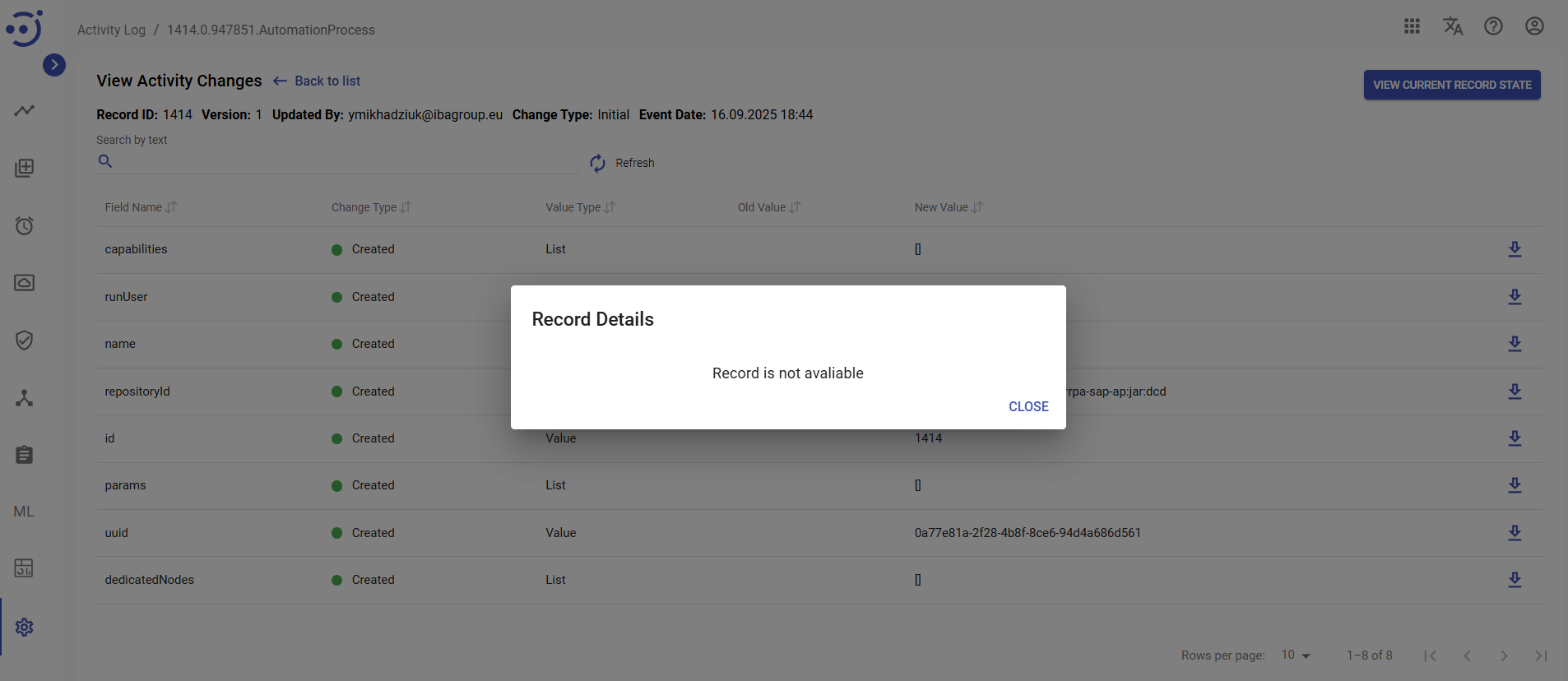
For existing records the details are displayed in JSON format: