Tagging Documents in Workspace
Tagging Documents in Workspace
Tagging Process Overview
When tagging, it's highly recommended to stick to the following order of steps:
- Find the required Human Task in the task list in Workspace,
- Accept the Human Task to start working on it,
- Review the list of fields on the right-hand panel,
- Review the document,
- Find and tag all the available fields in the document,
- Review the tagged document, making sure there are no fields omitted
- Click the Send button.
EasyRPA Tagging Interface
Workspace interface is simple, but you need to know every part of it to make the tagging process effortless.
This is the Workspace interface when a user starts tagging.
There are two main areas: the window where the document is displayed and the configurable panel with fields on the right.
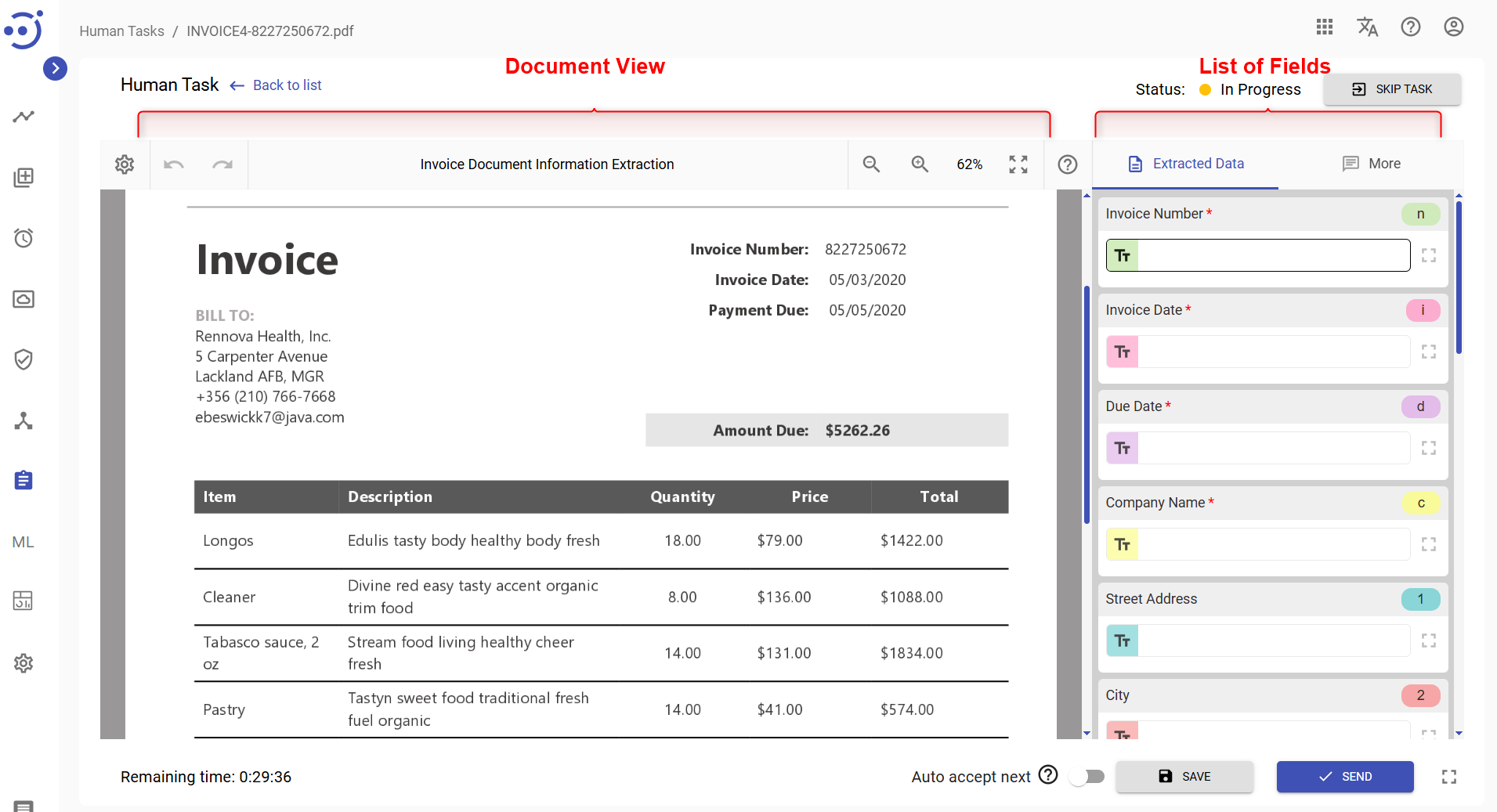
Please, refer to Tagging Overview for more information on Human Task Interface.
Tagging process
Steps to tag
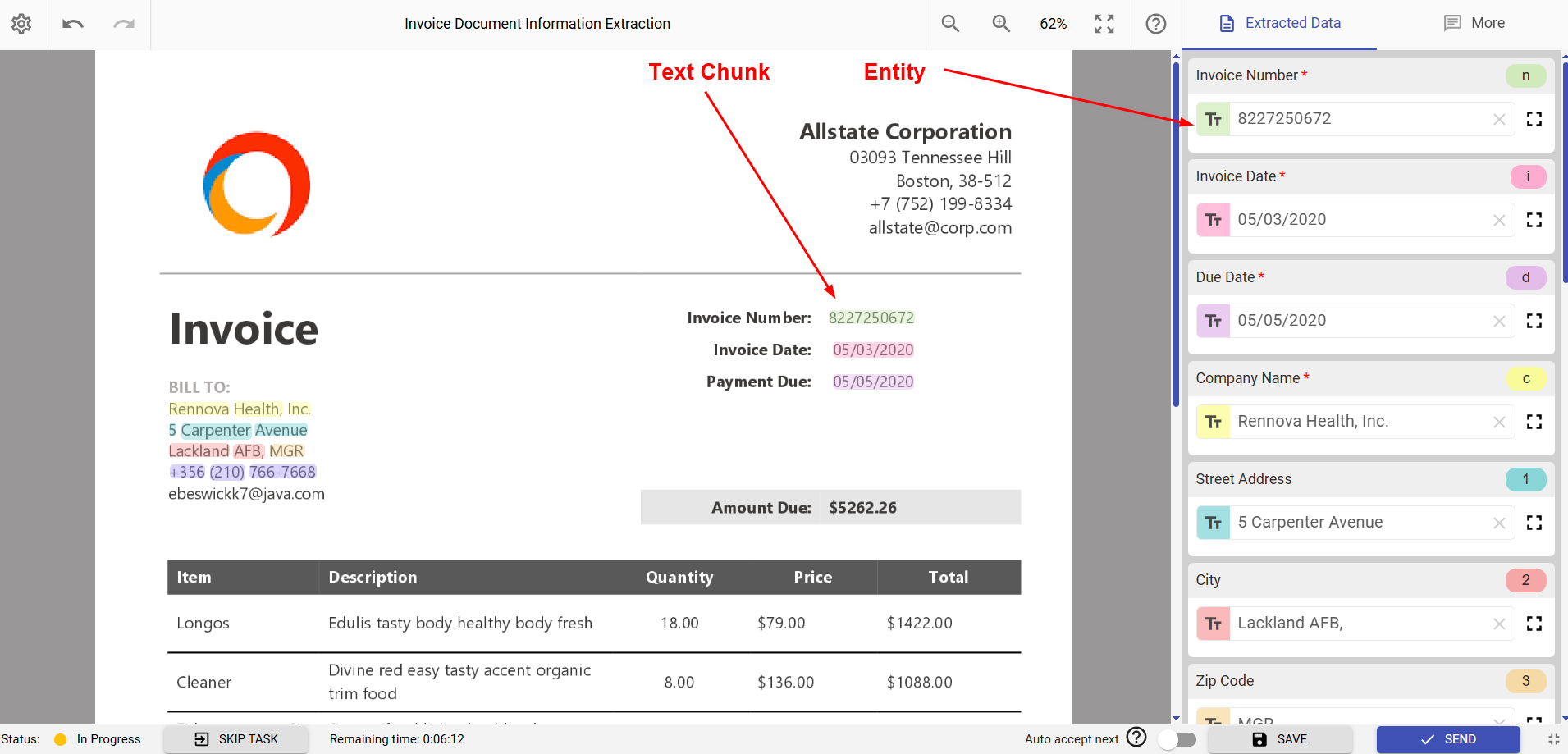
The process of tagging fields is simple. You need select a field you want to tag (make sure it is focused) in the right-hand panel and highlight the required value in the document.
When you find a text chunk that corresponds to one of the desired tags:
- Click the corresponding colored tag field or press the corresponding hotkey,
- Select the corresponding chunk of text,
- Note the selection is highlighted in the color corresponding to the tag.

Combinations to highlight the text:
- Double click: to select one word
- Click + Drag to select one word or the long string
- Shift+click (or Append icon): add another word or string to the existing selection.
Once the first field is tagged, you'll see the highlighted text chunk in the document and the corresponding value in the field on the right-hand side panel.
Note the text chunk is what the model will see and entity is what the user will receive as an output.
Working with tags
Delete and edit tags
- If you have tagged a text chunk improperly, you can delete the tag value and/or redo tagging.
- If you have found a misprint or incomplete info in the tagged text, you can edit the tag value within the field.
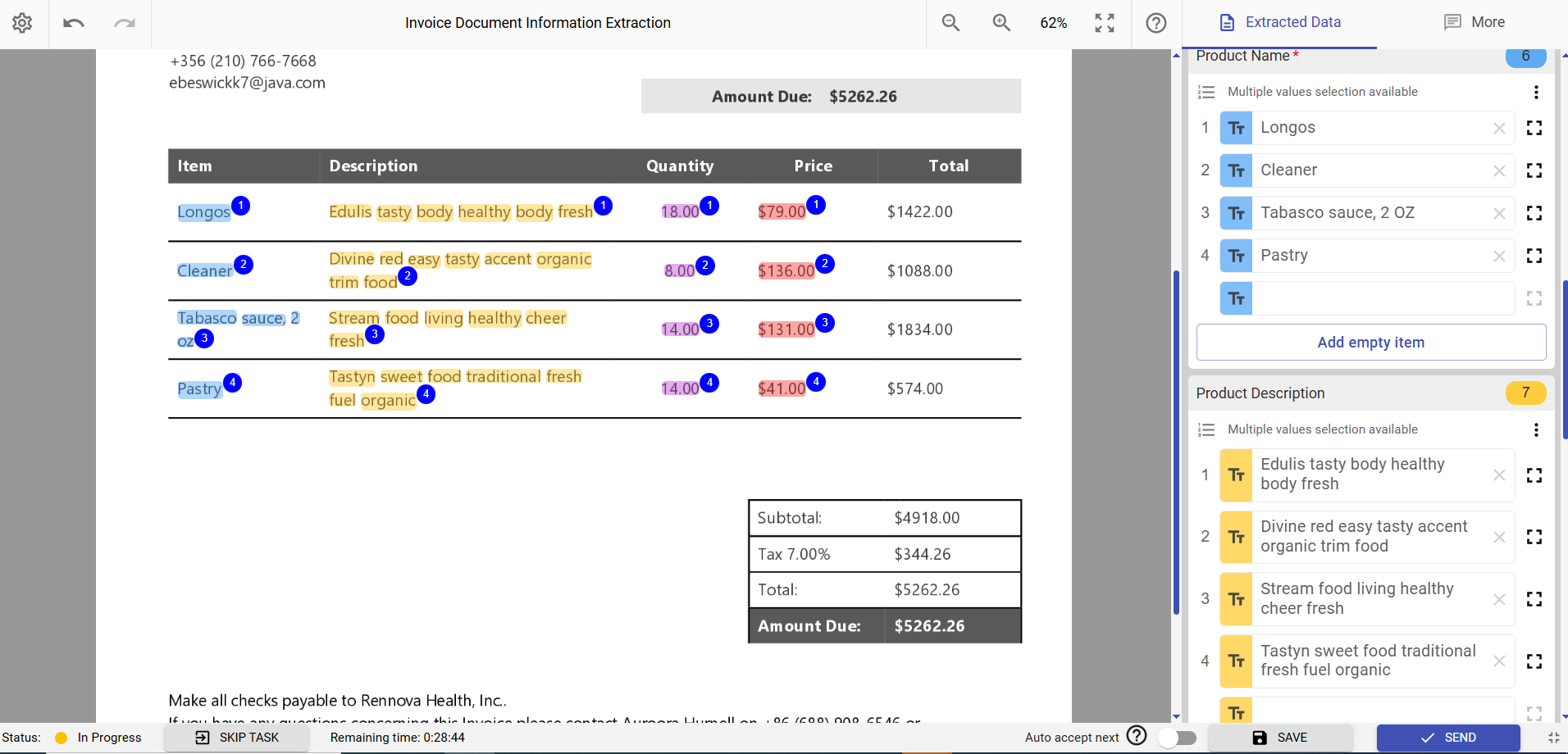
Tagging multiple fields
Tagging multiple fileds is intended for tagging repeatable information blocks with the same structure, for example, tables.
- Select text and tag it.
- When all tags for the first multiple field are set proceed to the next one.
Tags within a single multiple field are automatically assigned indexes (e.g., 1, 2, 3).
While working with big texts, you can enable full-screen mode by clicking the Expand Task Area  icon in the top-left corner.
Please review the Process Human Task and Tagging Overview for additional information.