OCR
OCR
Tessercat
Performance issue with OpenMP on 4 CPU systems
There is a known performanse issue in Tesseract 4/5 on 4 CPU systems:
https://github.com/tesseract-ocr/tesseract/issues/263#issuecomment-1008431653
The solution is to set enviroment variable OMP_THREAD_LIMIT=1 to the OCR container:
	 ocr:
	image: "ci.rpaplatform.org:8080/rpaplatform/easy-rpa-ocr:3.4.0"
	. . . . . .
	environment:
	 . . . . . .
	- "OMP_THREAD_LIMIT=1"
	volumes:
	 . . . . . .
Adding additional languge libriaries
Platforms OCR container contains only the following languages installed after platform installation:
tesseract-ocr-eng
tesseract-ocr-rus
tesseract-ocr-ukr
tesseract-ocr-fra
tesseract-ocr-deu
Here are the language codes:
https://tesseract-ocr.github.io/tessdoc/Data-Files-in-different-versions.html
To add additional language you shold perform the following steps on Control Server machine:
Find out the OCR container Id:
$ docker ps -a | grep ocr
d63f6dbbcbfe	 ci.rpaplatform.org:8080/rpaplatform/easy-rpa-ocr:3.4.0-SNAPSHOT			"java -cp @/app/jib-…"	 13 days ago	 Up 13 days				 0.0.0.0:8848->8848/tcp, :::8848->8848/tcp
														easy-rpa-cs-ocr-1
Connect to OCR contaier and install the languages:
$ docker exec -it --user root d63f6dbbcbfe /bin/bash
root@d63f6dbbcbfe:/app# apt-get update && apt-get install -y tesseract-ocr-XXX
where the XXX is the language code you need to add.
PaddleOCR
Issue with OpenMP OMP_THREAD_LIMIT<10
PaddleOCR can not produce any valuable result with OMP_THREAD_LIMIT<10. For the systems that has CPU more than 10, nothing should be done here. But with others the paddleocr log will contains a warning message and result will be useless:
OMP: Warning #96: Cannot form a team with 10 threads, using 1 instead.
OMP: Hint Consider unsetting KMP_DEVICE_THREAD_LIMIT (KMP_ALL_THREADS), KMP_TEAMS_THREAD_LIMIT, and OMP_THREAD_LIMIT (if any are set).
The solution is to set enviroment variable OMP_THREAD_LIMIT=10 to the OCR container, to make it work. It will not encrease the OCR performance (it defentlly degrease, but will provide valuable text instead of "white noise")
	 ocr:
	image: "ci.rpaplatform.org:8080/rpaplatform/easy-rpa-ocr:3.4.0"
	. . . . . .
	environment:
	 . . . . . .
	- "OMP_THREAD_LIMIT=10"
	volumes:
	 . . . . . .
Scaling OCR containers
Overview
Platforms OCR feature is quite resource consuming. Default installation provides only one OCR container. Depending on machine performance and business need, it is possible to:
- increase/decrease a number of OCR containers on the CS's machine.
- add external OCR containers on a separate dedicated machine.
Scaling OCR Containers On the CS's machine
The following command set 3 OCR container running on the CS's machine:
$ docker-compose scale ocr=3 && docker-compose restart telegraf
Checking OCR Performance
You need to take care about CS's machine performance balance - adding more OCR containers provides speed for parallel document processing till there are enough CPU and memory machine resources. Otherwise it could brake CS performance till dramatical results.
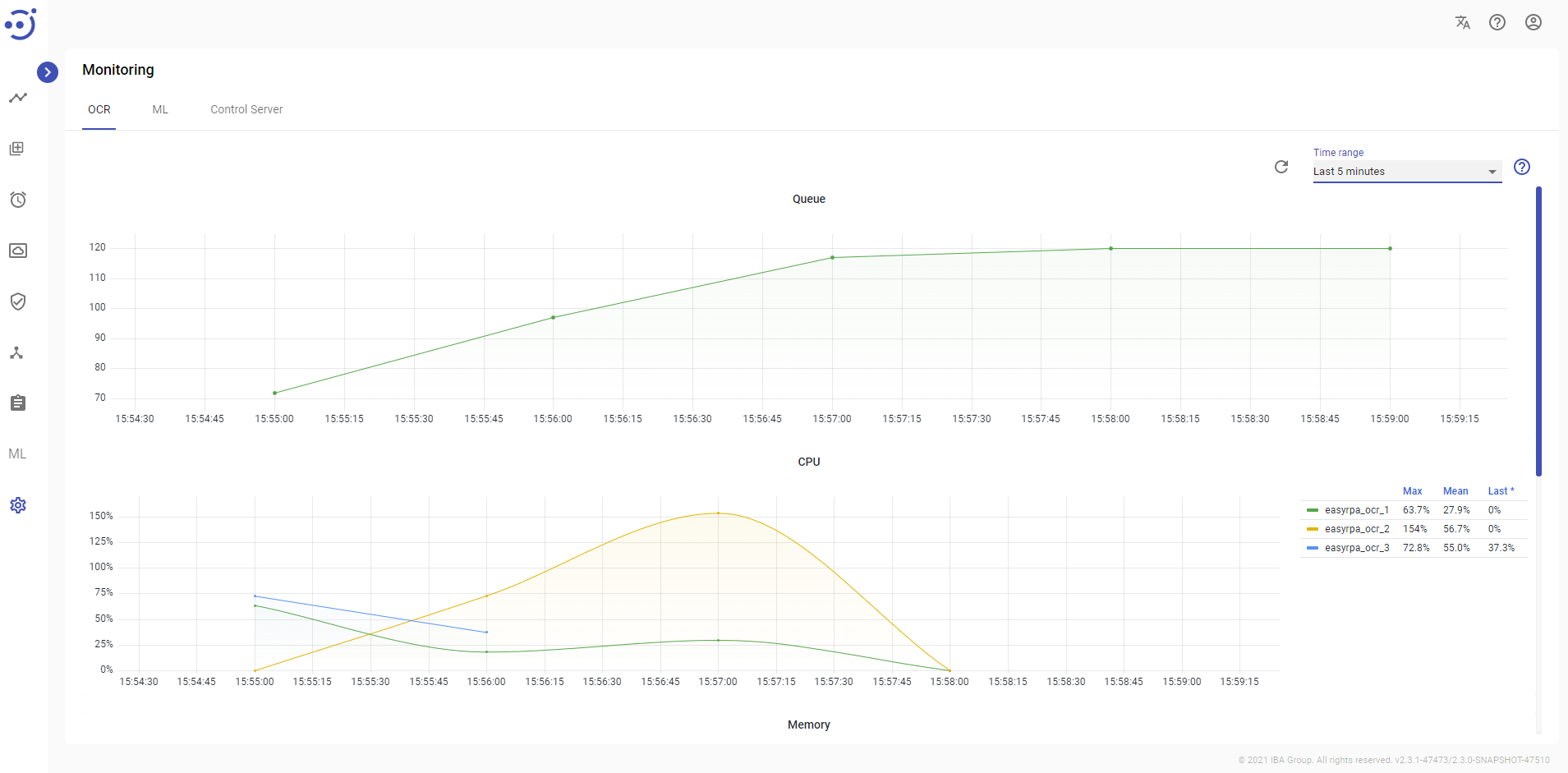
Use the Monitoring view to analyze the CS's machine performance:
Adding External OCR Containers On a dedicated Machine
Use rpaplatform-utils.sh to generate self-extracting installation package "rpaplatform-extra-ocr-install.sh" from a CS server instance folder. Package is already preset to connect the parent CS instance.
Machine Prerequisites
- Linux server with Docker environment. Alternatively a Windows machine could be used with a WSL Ubuntu + Docker Desktop setup (see Installation on Windows 10 for details)
- Firewall is not blocking connection to the parent CS instance
Installation package "rpaplatform-extra-ocr-install.sh" + "rpaplatform-extra-ocr-install.sh.sha256" is uploaded to server
Installing extra OCR containers
Start installation with the following command
$ sudo bash -f ./rpaplatform-extra-ocr-install.sh
Optionally you can provide following command line parameters:
- --debug (enables debug output of the installation process)
- --install-dir <A DIRECTORY> (submits directory for the instance to be created in)
If install directory is not provided as parameter, it needs to be entered during installation. Default suggestion is /opt/rpaplatform_ocr
Installation directory [/opt/rpaplatform_ocr]:
Migrating extra OCR containers to a new version
To migrate to a new version of OCR containers following should be done:
- Parent CS instance should be migrated first - installation package "rpaplatform-extra-ocr-install.sh" will be re-generated during migration
- Copy re-generated package and follow installation instructions above - old setup will be deleted and new one created
Checking OCR Performance
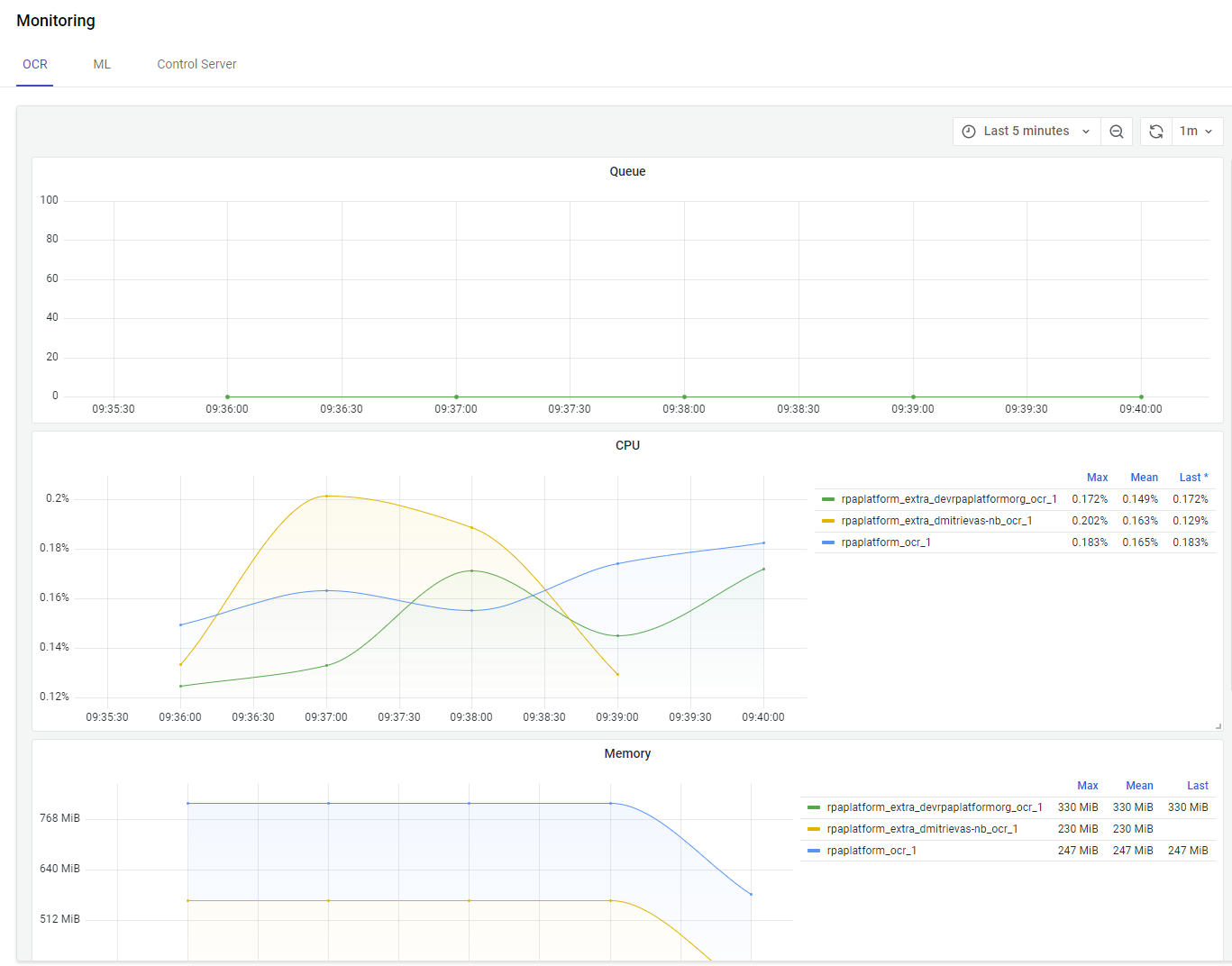
Use the Monitoring view to analyze the external OCR containers performance - extra containers have prefix rpaplatform_extra_<MACHINE_NAME>: